Configuring the PHP error log
The PHP error log offers a number of configurable options to customise which errors are captured by the log, the level of detail recorded, and how long data is retained.
Take a look at the video overview for a quick introduction to the options available, or keep reading for further details.
Video Overview
Configurable Options
The following configurable options are available for the PHP error log.
Error Level
This option allows you to select which PHP error levels to log.
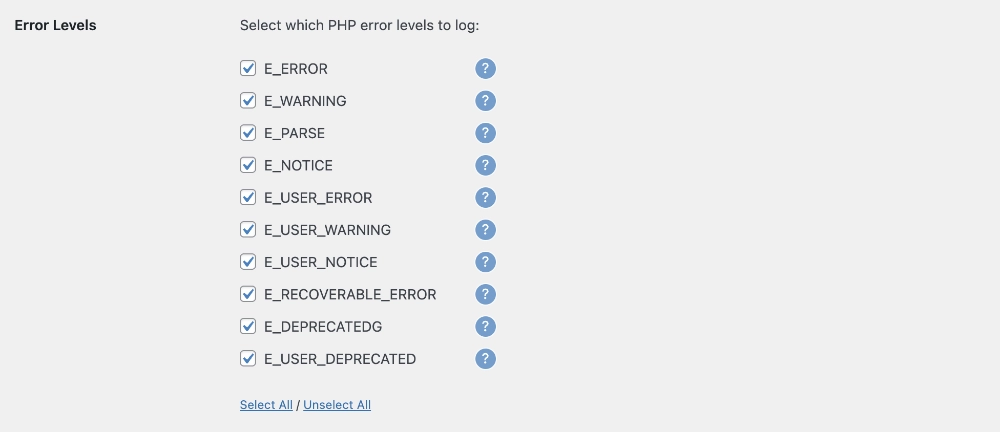
You can select one or more of the following options:
- Errors (E_Error)
Fatal run-time errors. These indicate errors that can not be recovered from, such as a memory allocation problem. Execution of the script is halted. - Warnings (E_Warning)
Run-time warnings (non-fatal errors). Execution of the script is not halted. - Parse Errors (E_PARSE)
Compile-time parse errors. - Notices (E_NOTICE)
Run-time notices. Indicate that the script encountered something that could indicate an error, but could also happen in the normal course of running a script. - User Errors (E_USER_ERROR)
User-generated error message. This is like an E_ERROR, except it is generated in PHP code by using the PHP function trigger_error(). - User Warnings (E_USER_WARNING)
User-generated warning message. This is like an E_WARNING, except it is generated in PHP code by using the PHP function trigger_error(). - User Notices (E_USER_NOTICE)
User-generated notice message. This is like an E_NOTICE, except it is generated in PHP code by using the PHP function trigger_error(). - Recoverable Errors (E_RECOVERABLE_ERROR)
Catchable fatal error. It indicates that a probably dangerous error occurred, but did not leave the Engine in an unstable state. - Deprecated (E_DEPRECATED)
Run-time notices. Enable this to receive warnings about code that will not work in future versions. - User Deprecated (E_USER_DEPRECATED)
User-generated warning message. This is like an E_DEPRECATED, except it is generated in PHP code by using the PHP function trigger_error().
You can find further details on the the different PHP error levels in our support article on understanding PHP error levels.
Recommended Settings
The recommended settings will vary depending on your use case.
If you are using the error log on a live/production site, you will likely want to focus on fatal errors that will directly impact your site functionality/experience, eg:
- Errors (E_Error)
- Parse Errors (E_PARSE)
- User Errors (E_USER_ERROR)
If you are using the error log on a development site, to aid in the development of a custom theme, plugin or other custom functionality, you will likely want to capture all error levels to better identify issues and potential improvements in your code.
Scope
This option allows you to select which sources to log errors for.
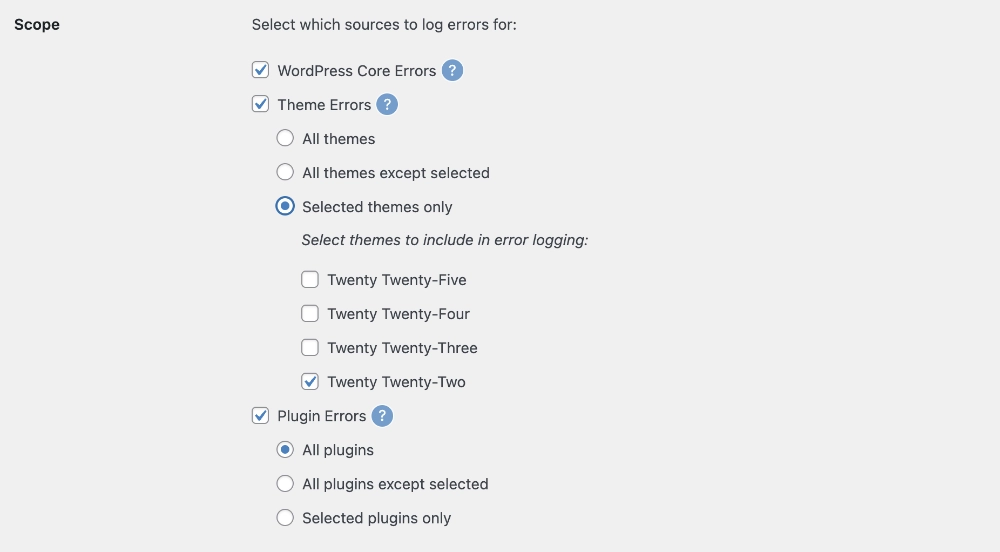
You can select one or more of the following options:
- WordPress Core Errors
Log errors originating from core WordPress files. - Theme Errors
Log errors originating from WordPress theme files. - Plugin Errors
Log errors originating from WordPress plugin files.
For theme and plugin errors, the configuration page offers a further option:
- All themes/plugins
- All themes/plugins except selected
- Selected themes/plugins only
Recommended Settings
In most cases, you will likely want to log all WordPress core, theme and plugin errors, as all have the potential to cause fatal errors which can impact your site functionality/experience. Whilst in a development environment, you may want to focus on errors originating from your own custom theme/plugin, it may still be worthwhile logging errors from other sources, as it is possible that an error in your code could trigger an error or conflict in the WordPress core or another third party plugin or theme.
Stack Trace
Where possible, the PHP Error Log can attempt to capture a full stack trace (also known as a backtrace) for each error. The stack trace records a list of the functions (and optionally the arguments passed to those functions) that were called leading up to an error being generated. This can be useful tool when debugging errors.
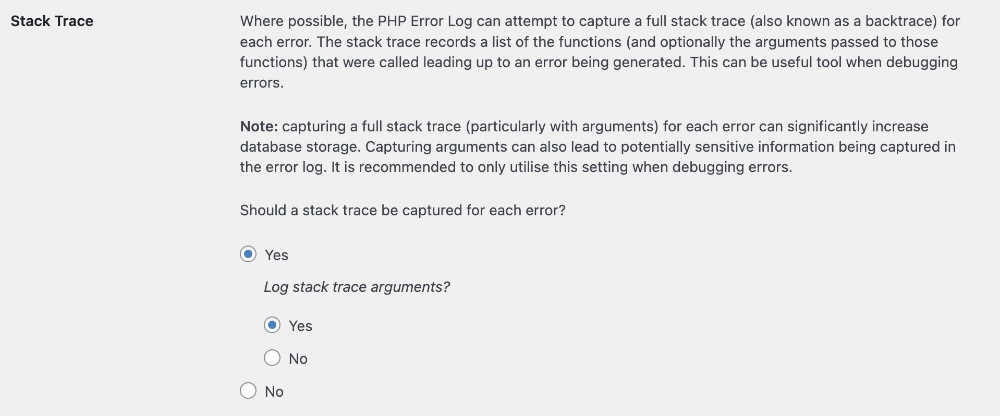
The following options are available:
- Should a stack trace be captured for each error?
- Yes
- No
- Log stack trace arguments?
(note: this option is only visible if Yes is selected for Should a stack trace be captured for each error?)- Yes
- No
Note: capturing a full stack trace (particularly with arguments) for each error can significantly increase database storage. Capturing arguments can also lead to potentially sensitive information being captured in the error log. It is recommended to only utilise this setting when debugging errors.
Recommended Settings
The recommended settings will vary depending on your use case.
If you are using the error log on a live/production site, it may be advisable to not capture stack traces, and particularly not to capture stack trace arguments. This will both save on database space and prevent any sensitive data being inadvertently captured in the stack trace arguments. If you need to trouble-shoot a specific error, you can always enable this temporarily.
If you are using the error log on a development site, to aid in the development of a custom theme, plugin or other custom functionality, capturing both stack traces and their arguments can be an extremely helpful tool when debugging any errors that arise.
Log Retention
The log retention setting allows you to manage log storage by defining how long captured errors and their occurrences are stored for.
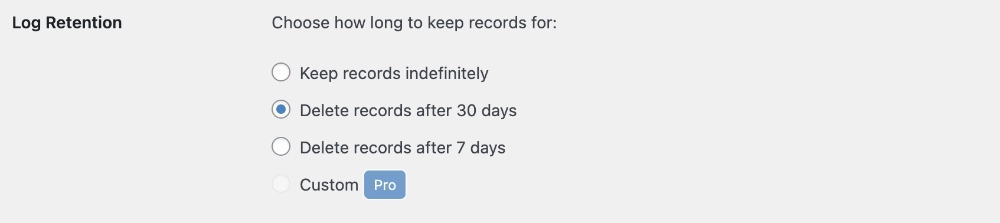
The available options are:
- Keep records indefinitely
- Delete records after 30 days
- Delete records after 7 days
Recommended Setting
The recommended settings will vary depending on your use case and personal preferences. In most cases, retaining records for 30 days will strike a good balance between error visibility and efficient use of storage space.
Default Error Handling
This option allows you to choose whether or not errors are also passed to PHP’s default error handler, which typically takes care of error logging on your server – for example by recording errors in your server’s error log files.

The following options are available:
- Should the error also be passed to PHP’s default error handler?
- Yes
- No
Recommended Setting
The recommended settings will vary depending on your use case and personal preferences. In most cases, duplicate logging of errors will be inefficient, and even in the case of fatal errors which prevent WP Admin from loading correctly, WordPress’s recovery mode should still allow you to log into WP Admin and view Logtastic’s PHP error log.
Ignored Errors
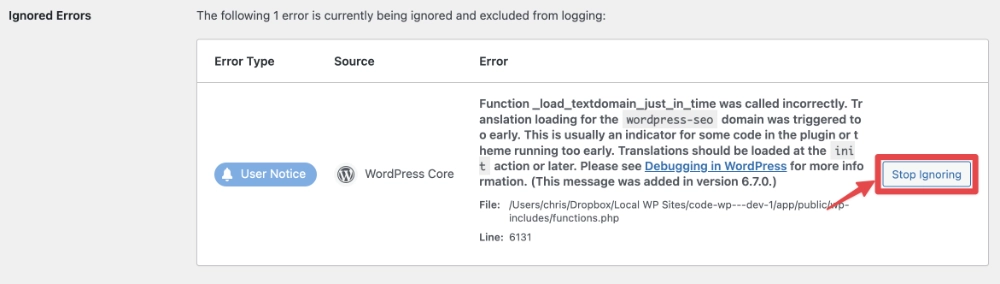
If you have ignored any errors, via the Delete & Ignore action on the view error log page, these will be displayed here. If you no longer want to ignore a particular error, you can click the Stop Ignoring button next to that error. Any future occurrences of that error will then be logged.