

Viewing the PHP Error Log
This article provides an overview of how to view and understand the PHP error log. Take a look at the video overview for a quick introduction or keep reading for a more detailed explanation.
Video overview
…insert video….
The log table
The log table shows all PHP errors captured on your WordPress site.
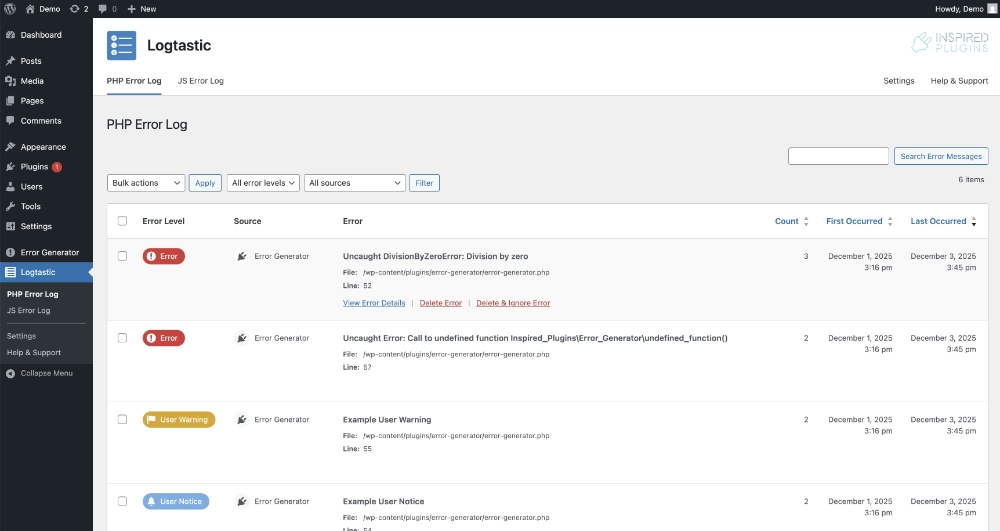
For each error, the following data is shown:
- Error Level
The type of PHP error, see our article on understanding PHP error levels for more information - Source
The source of the PHP error, either WP Core (for errors originating in WordPress core files) or a specific plugin or theme - Error
This column shows the error message, originating file and line. It also includes links to view, delete or delete and ignore each error, these links are only visible when you hover over a table row - Count
This column shows a count of the errors occurrences, eg. how many times the error has occurred - First Occurred
This shows the date and time the error first occurred on your site - Last Occurred
This shows the date and time of the most recent occurrence of the error
The table can be sorted, filtered and searched according to your requirements.
Sorting the log table
By default, the log table is sorted by Last Occurred. This means that the most recently encountered errors on your WordPress site will be shown first. You can change how the log table is sorted by clicking on any of the blue column headings, including Count, First Occurred or Last Occurred.
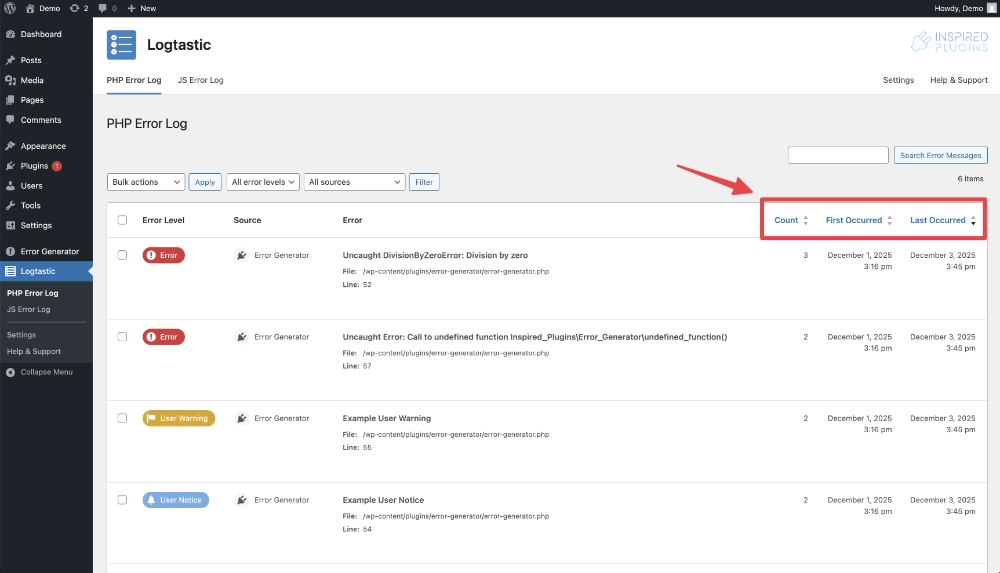
The table will initially be sorted by your selected column heading in descending order. You can click on the same column heading again to show results in ascending order.
Filtering the log table
The filter fields above the log table allow you to filter the log by Error Level or Source.
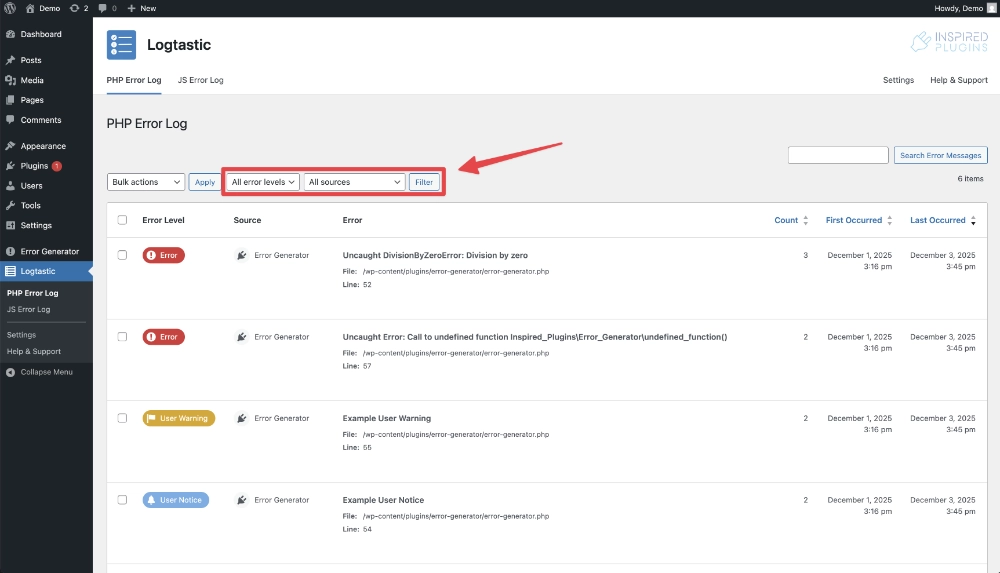
Only options with matching log items available will be shown.
Filtering by error level
Filter the log table to show only errors of a specific level, eg. Error, Warning, etc.
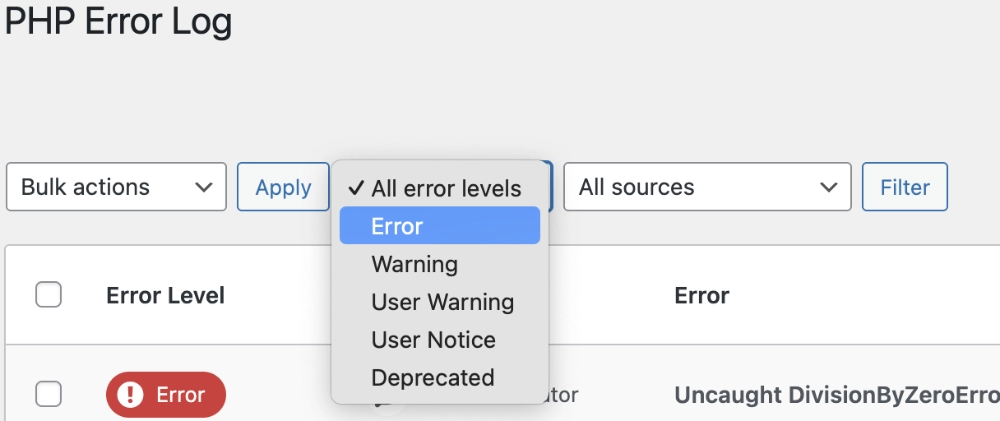
Filtering by error source
Filter the log table to show only errors from a specific source.
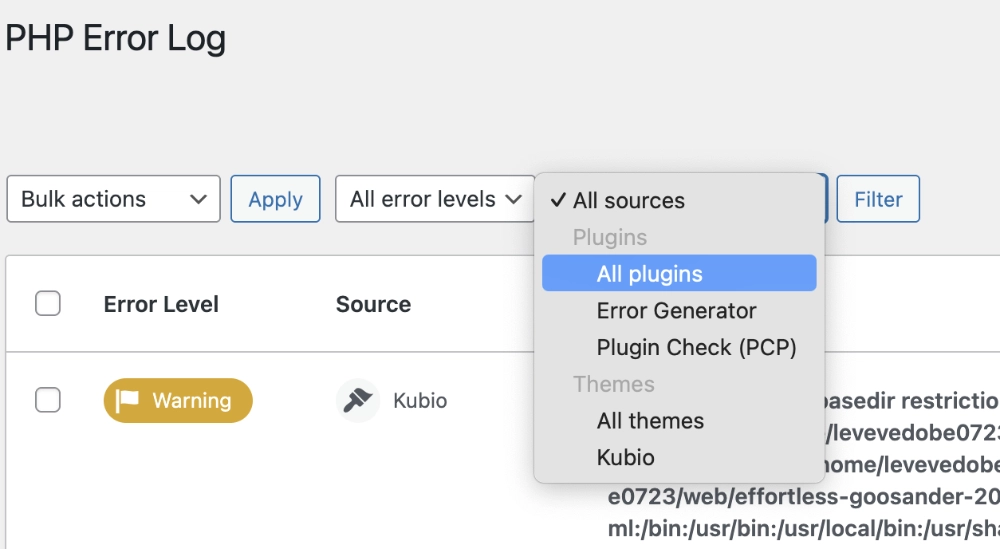
Available options include:
- WP core
- All plugins
- A specific plugin only
- All themes
- A specific theme only
Searching the log table
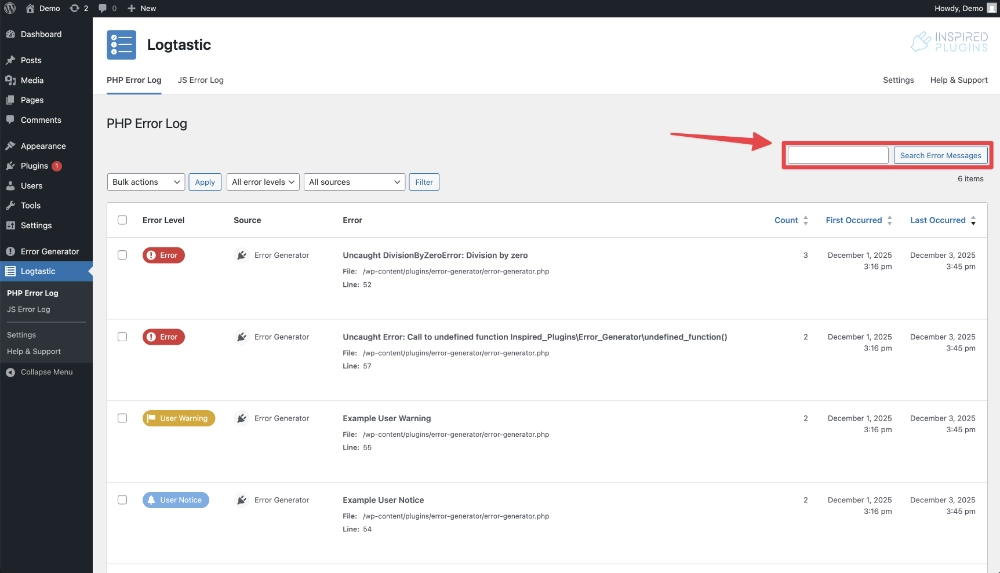
You can use the search field above the log table to search for specific error messages. The search will results will return all errors where the error message contains the string you enter.
Individual error view
You can view further details about any error in the log by clicking the View Error Details link in the log table.
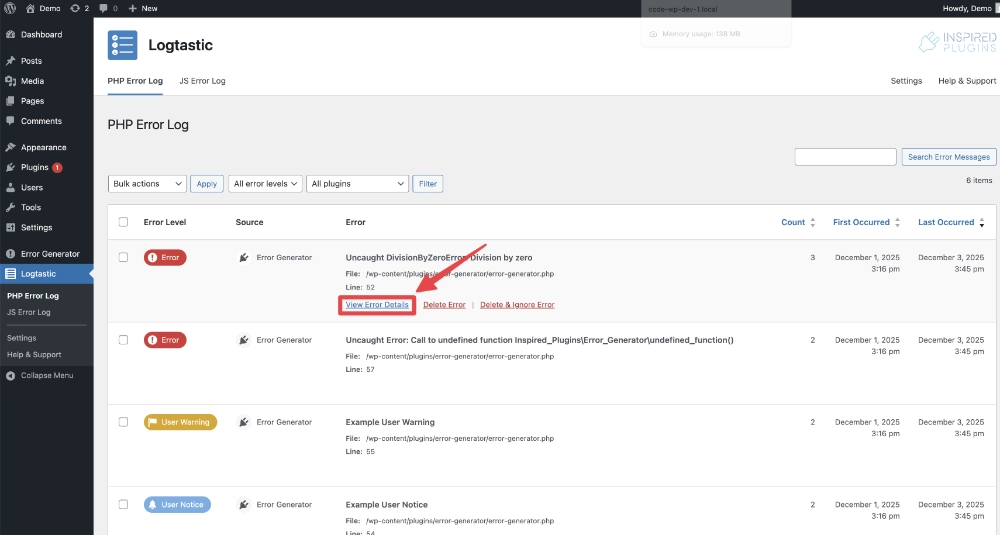
A modal window will open showing further information about the selected error.
Error details
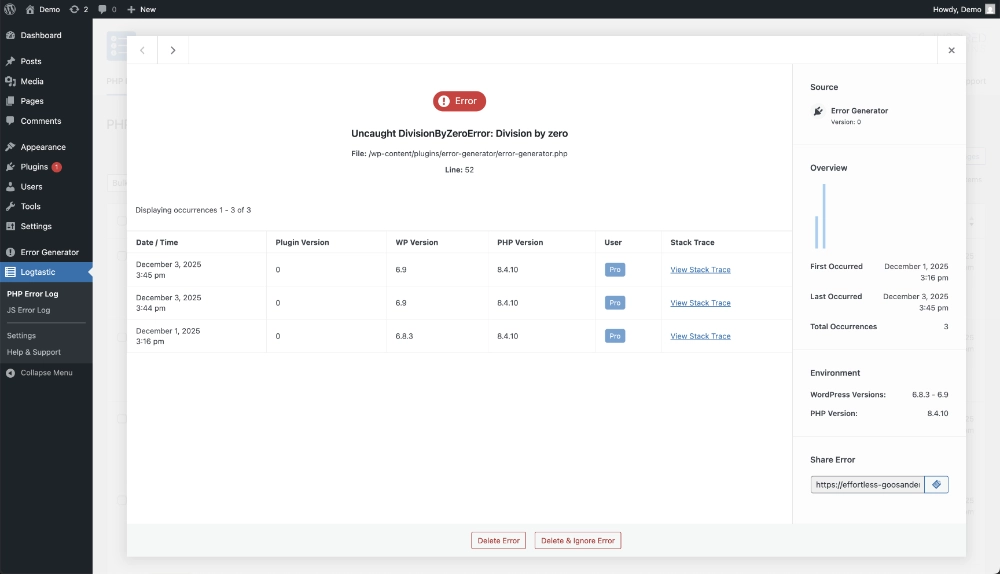
The main area of the view error modal contains basic information about the error, including the error type, error message, file and line number.
The sidebar of the view error modal contains additional information about the error, including the error source (eg. a specific theme or plugin), occurrences overview (including a chart showing occurrences over time, the date and time of the first and last occurrence of the error, and the total number of occurrences), and environment information (including which WordPress and PHP versions the error has been encountered with. There is also an option to share the error.
Error occurrences
The main area of the view error modal contains a table showing all recorded occurrences for that error, ordered by most recent first.
For each occurrence, the following data is shown:
- Date and time of occurrence
- Plugin / theme version – for plugin or theme related errors, the version of the plugin / theme at the time the occurrence was recorded
- WP version – the WordPress version at the time the occurrence was recorded
- PHP version – the PHP version at the time the occurrence was recorded
- User (PRO version only) – the logged in WordPress user who encountered the error (if applicable)
- A link to view the stack trace for that error (if capturing stack traces is enabled in the log settings).
Stack trace
If capturing stack traces is enabled in the log settings, a link will be shown next to each occurrence that will display the stack trace (also known as a backtrace) for that specific occurrence in a modal window, where it has been possible to capture this.
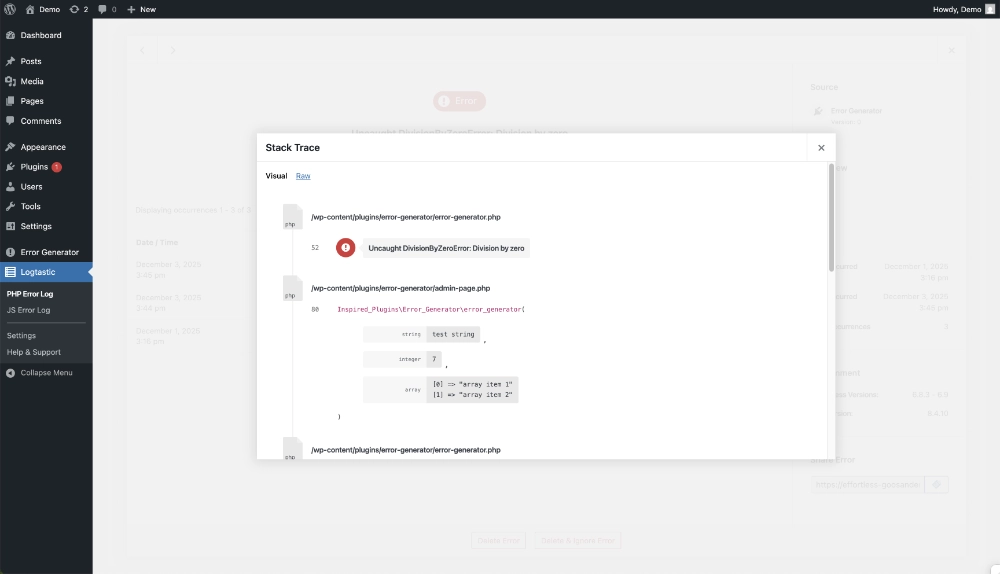
The stack trace records a list of the functions (and optionally the arguments passed to those functions, if logging stack trace arguments is enabled in the log settings) that were called leading up to an error being generated. This can be useful tool when debugging errors.
Sharing an error
A unique url is generated for each error that will link directly to the error modal for that error. This can be used to share the error with another user, for example a colleague or developer.
Note: only users with access to WordPress admin and the Logtastic plugin will be able to view this url.
Log actions
Delete
You can delete an error either via the Delete link on the log table or the Delete button on the individual error view modal, or you can delete multiple errors at once via the bulk actions at the top of the log table.
When deleting an error you will be prompted for confirmation before the delete operation is carried out.
Once confirmed, the error will be deleted from the log, along with all related data (such as occurrences and stack trace data). This operation is permanent and cannot be reversed.
Delete & ignore
As well as deleting an error, you can also choose to delete and ignore an error. As well as deleting all data related to an error, this option will also prevent future occurrences of this error from being logged. If you later which to start re-logging occurrences of this error, you can remove it from the ignore list on the PHP error log settings page.
