

General Settings
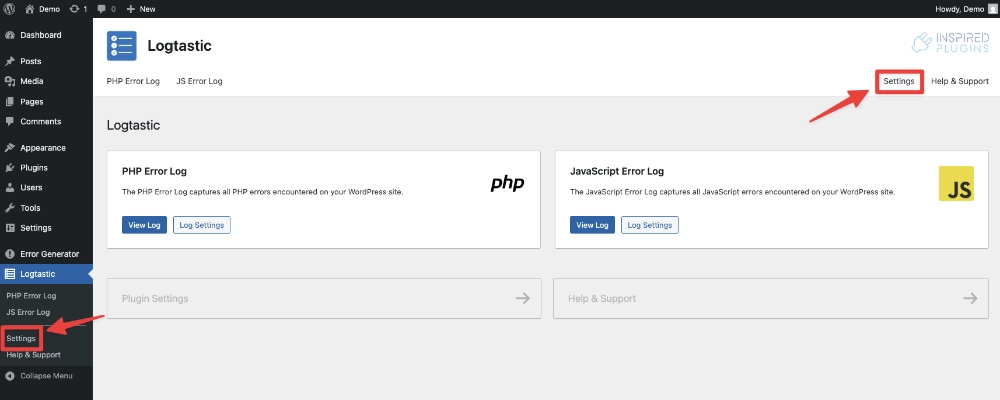
To access the plugin’s general settings, navigate to Logtastic > Settings from the WordPress admin menu, or click on the Settings link in the plugin header from any Logtastic plugin screen.
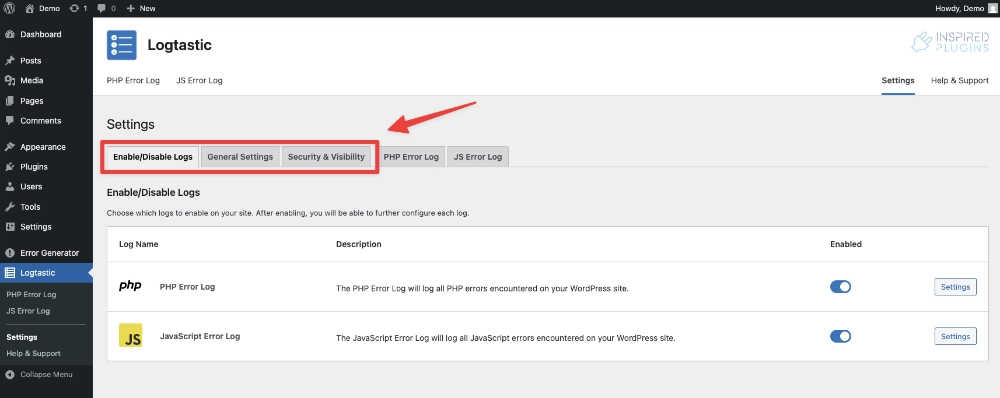
The plugin’s general settings are split over three tabs, Enable/Disable Logs, General Settings and Security & Visibility. You can navigate between the different sections using the tabbed navigation at the top of the settings screen.
Watch our video overview of the general plugin settings, or keep reading for a more detailed explanation of each section.
The plugin settings screen also provides access to the settings for each individual log, either via the tabs at the top of the screen or the settings button the enable/disable logs section.
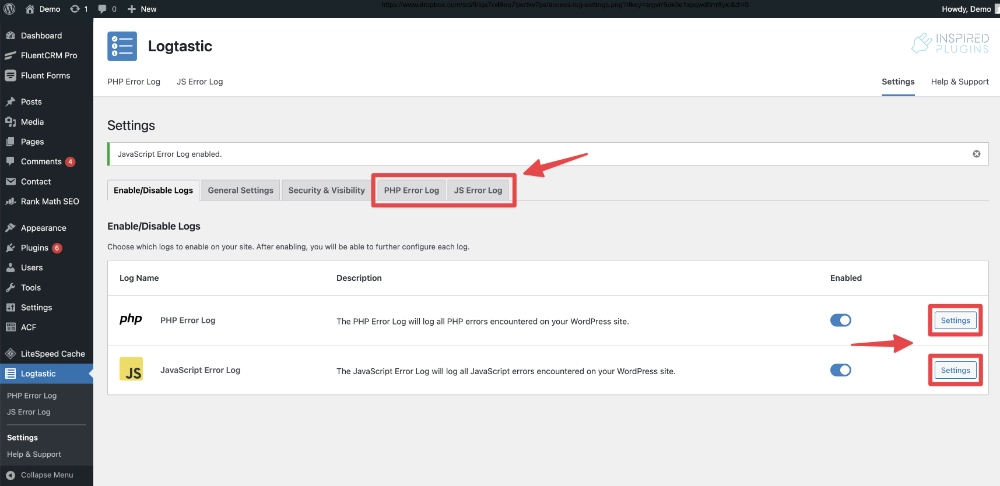
The individual log settings are covered in more detail in the following documentation pages:
General Settings – Video Overview
…Video coming soon…
Enable/Disable Logs
On the Enable/Disable Logs settings screen, you can choose which logs to enable on your site using the toggle switches to enable/disable individual logs.
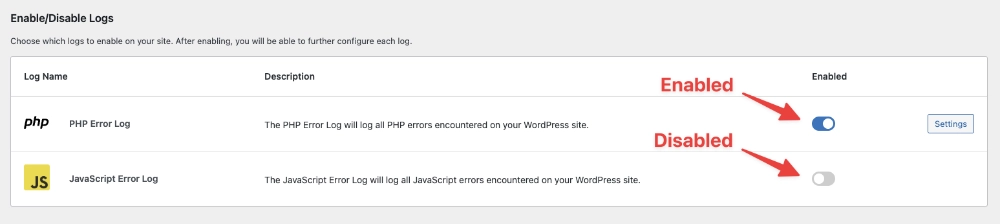
After enabling a log, you can then configure the individual log settings either via the tabs at the top of the screen or the settings button the enable/disable logs section.
The individual log settings are covered in more detail in the following documentation pages:
General Settings
The General Settings screen allows you to adjust the Logtastic plugin’s general settings. The following options are available:
Plugin loading method
This option allows you to select the method used to load the plugin. There are two options available: Standard loading and Priority loading (recommended).
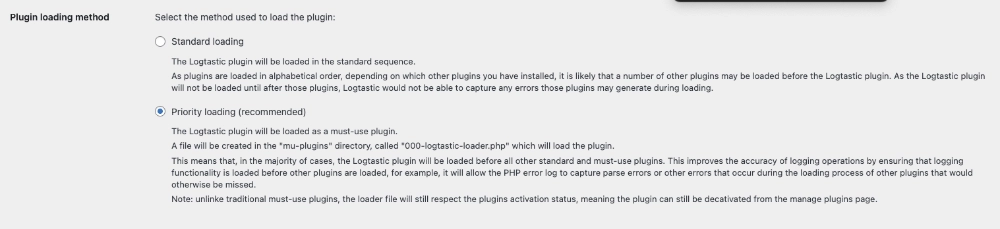
Standard loading
The Logtastic plugin will be loaded in the standard sequence.
As plugins are loaded in alphabetical order, depending on which other plugins you have installed, it is likely that a number of other plugins may be loaded before the Logtastic plugin. As the Logtastic plugin will not be loaded until after those plugins, Logtastic would not be able to capture any errors those plugins may generate during loading.
Priority loading (recommended)
The Logtastic plugin will be loaded as a must-use plugin.
A file will be created in the “mu-plugins” directory, called “000-logtastic-loader.php” which will load the plugin.
This means that, in the majority of cases, Logtastic will be loaded before all other standard and must-use plugins. This improves the accuracy of logging operations by ensuring that logging functionality is loaded before other plugins are loaded, for example, it will allow the PHP error log to capture parse errors or other errors that occur during the loading process of other plugins that would otherwise be missed.
Note: unlike traditional must-use plugins, the loader file will still respect the plugins activation status, meaning the plugin can still be deactivated from the manage plugins page.
Security & Visibility
The Security & Visibility settings screen allows you to configure which users can view and access the Logtastic plugin.
In the free version of the plugin, there is one simple setting to define which user roles can access the logs and settings.
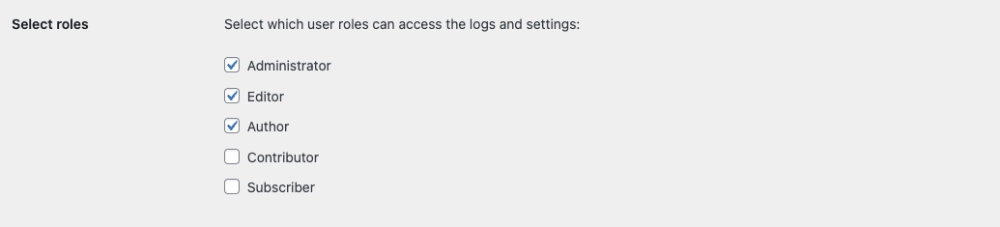
For the selected roles, users with that role will be able to see the Logtastic plugin in the WordPress admin menu, and view/edit all logs and the plugin settings.
Users belonging to roles without permission will not be able to see the Logtastic plugin in the WordPress admin menu, or access any of the logs or plugin settings.
The forthcoming pro version of the Logtastic plugin will offer more granular security & visibility settings, including:
- The ability to configure access settings individually for each log and plugin settings
- For each log, the ability to configure which users can access the log, as well as which users can edit or delete items
- The ability to define access by user role and/or grant access to individual users
- The ability to hide the Logtastic plugin from the plugins list for users without access
